Website Popup
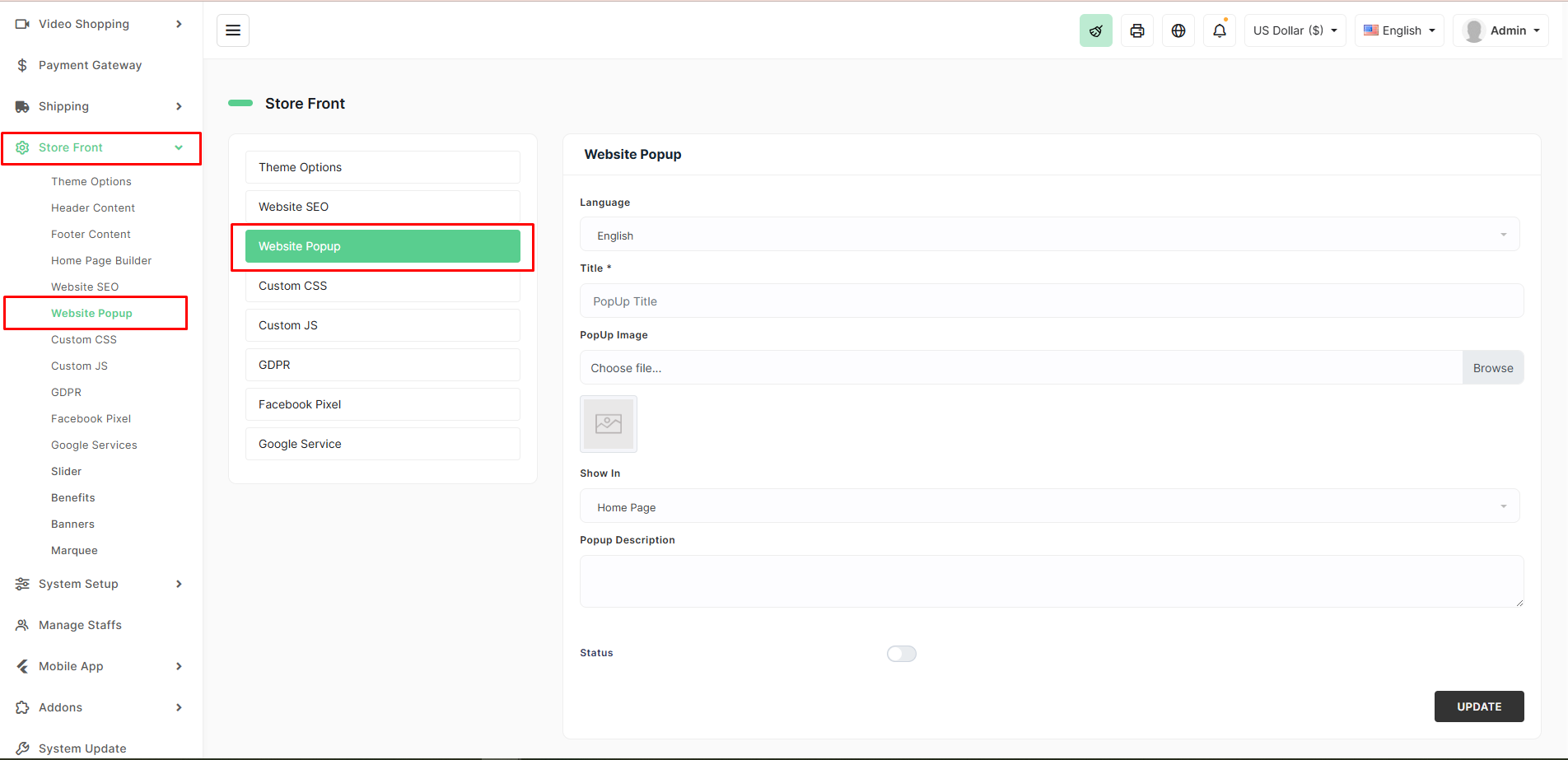
The Website Popup feature allows you to display a customizable promotional or informational popup to visitors when they land on your store. It’s perfect for announcing flash sales, collecting emails, promoting new collections, or sharing important notices.
Location
Store Front → Website Popup
Available Settings (Per Language)
| Field | Description | Recommended Usage |
|---|---|---|
| Language | Choose the language for this popup content | Create one version per active language |
| Title | Bold headline of the popup | Short & attention-grabbing (e.g., "Eid Sale – Up to 70% Off!") |
| Popup Image | Main image/banner inside the popup (recommended: 600×400 px or larger) | High-quality promotional banner |
| Show In | Where the popup appears | Usually Home Page (or All Pages) |
| Popup Description | Additional text or offer details (supports basic HTML) | Include discount code, expiry, CTA |
| Status | Toggle to enable/disable the popup globally | Turn ON during campaigns, OFF otherwise |
How to Set Up a Popup
- Go to Store Front → Website Popup.
- Select the desired Language.
- Fill in:
- A catchy Title
- Upload an attractive Popup Image
- Choose Show In → usually Home Page
- Write a clear Popup Description (e.g., “Use code EID70 – Valid till 30th April!”)
- Toggle Status to ON.
- Click UPDATE.
The popup will now appear once per visitor session (controlled by cookies).
Pro Tips
- Only one popup can be active at a time.
- Keep the image lightweight (<300 KB) for fast loading.
- Use contrasting colors so text is readable over the image.
- Add a clear call-to-action (e.g., “Shop Now” button via description link).
- Disable the popup after the campaign ends to avoid annoying returning customers.
Perfect for boosting conversions during sales, holidays, or new launches!