Slider (Hero Slider)
The Slider section lets you create and manage the main hero carousel/banner that appears at the top of your homepage. This is one of the most prominent and high-converting areas of your store.
Location
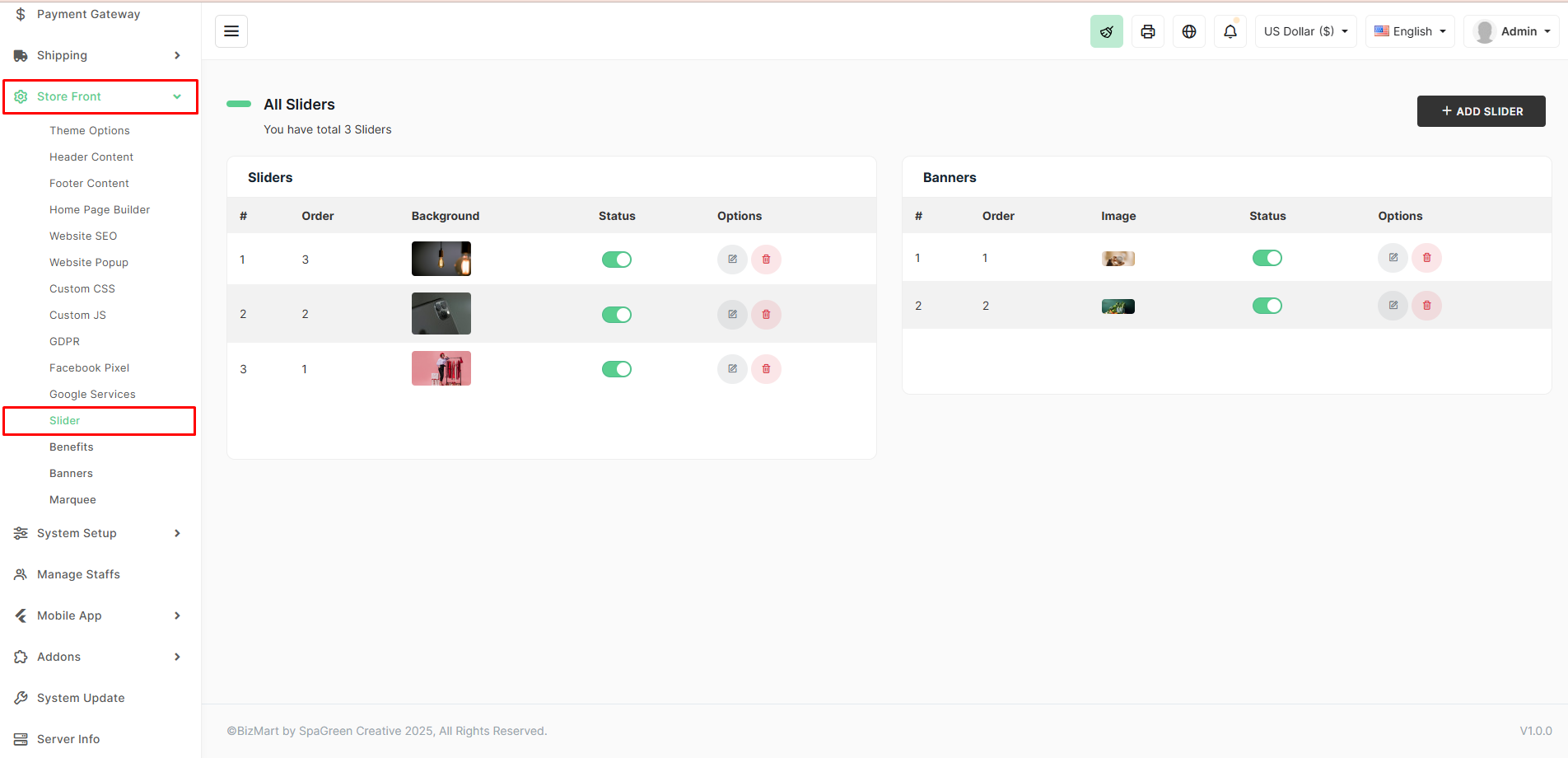
Store Front → Slider
Two Types of Sliders
| Type | Description | Best For |
|---|---|---|
| Sliders | Full-width, auto-playing carousel with background images, titles, subtitles, and buttons | Classic hero banners, big promotions |
| Banners | Static or simple image banners (usually placed in other homepage sections) | Smaller promotional blocks |
Slider Management Table
| Column | Description |
|---|---|
| # | Serial number |
| Order | Display order (lower number = appears first) – drag to reorder |
| Background | Thumbnail of the uploaded slider image |
| Status | Toggle to enable/disable individual slides |
| Options | Edit (pencil) or Delete (trash) the slide |
How to Add a New Slider
- Click + ADD SLIDER (top-right).
- Fill in the form:
- Title – Main headline (e.g., "Eid Super Sale")
- Subtitle – Supporting text (e.g., "Up to 70% Off on Everything")
- Button Text – e.g., "Shop Now"
- Button Link – URL the button leads to (category, collection, or external)
- Background Image – Recommended size: 1920×800 px (or larger)
- Status – Active/Inactive
- Order – Set priority (1 = first slide)
- Click Save.
Pro Tips for High-Converting Sliders
- Use high-quality, professionally designed images (1920×800 px minimum).
- Keep text short and bold – visitors scan, they don’t read.
- Use contrasting colors so text stands out over the image.
- Limit to 3–5 slides max – too many reduce effectiveness.
- Always include a clear Call-to-Action button (Shop Now, Grab Deal, etc.).
- Change sliders regularly for festivals, seasons, and flash sales.
The hero slider is your digital billboard — make it bold, beautiful, and action-driven!