Header Content
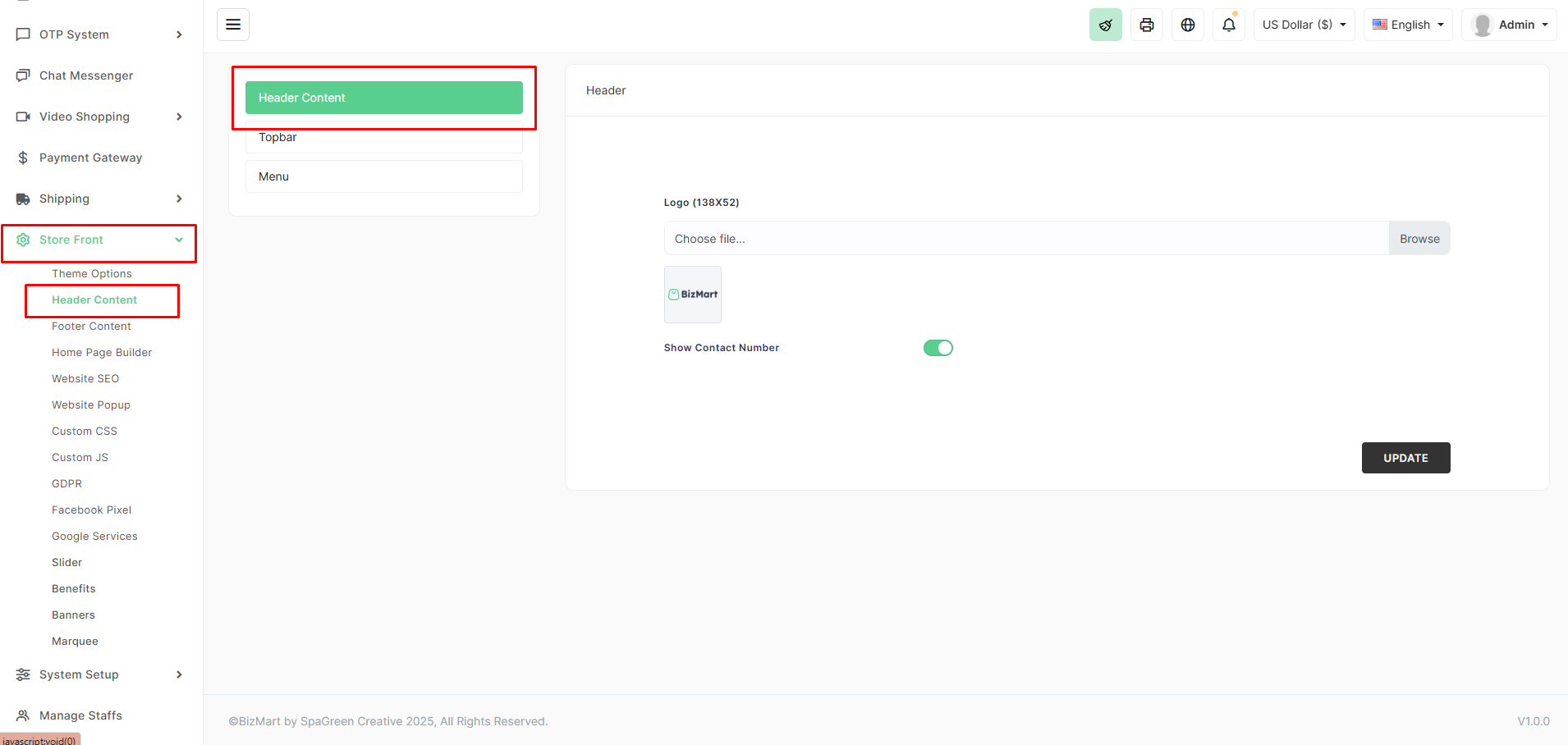
The Header Content section allows you to customize the top section of your storefront, including the logo and contact number visibility. This area appears on every page and plays a key role in branding and customer trust.
Location
Store Front → Header Content
Available Settings
| Setting | Description | Recommended |
|---|---|---|
| Logo | Upload your store logo (recommended size: 138×52 px) | PNG with transparent background |
| Show Contact Number | Toggle to display your store’s phone number in the header | Enable for better trust |
How to Configure
- Go to Store Front → Header Content.
- Click Browse or drag your logo file into the upload area.
- Ideal dimensions: 138px width × 52px height
- Max file size: 2 MB
- Supported formats: PNG, JPG, SVG
- Turn Show Contact Number ON or OFF as needed.
- The phone number is pulled automatically from your store settings (System Setup → General Settings).
- Click UPDATE.
Changes appear instantly on the live storefront.
Pro Tips
- Use a transparent PNG logo for the best look on both light and dark header backgrounds.
- Keep the logo under 150px in width to avoid layout issues on mobile.
- Enable Show Contact Number — customers love seeing a real phone number; it increases conversion rates.
- If using a white logo on a dark header, ensure your Theme Options → Menu Background Color matches your design.
Your header is often the first thing visitors see — make it professional and consistent with your brand!