Footer Content
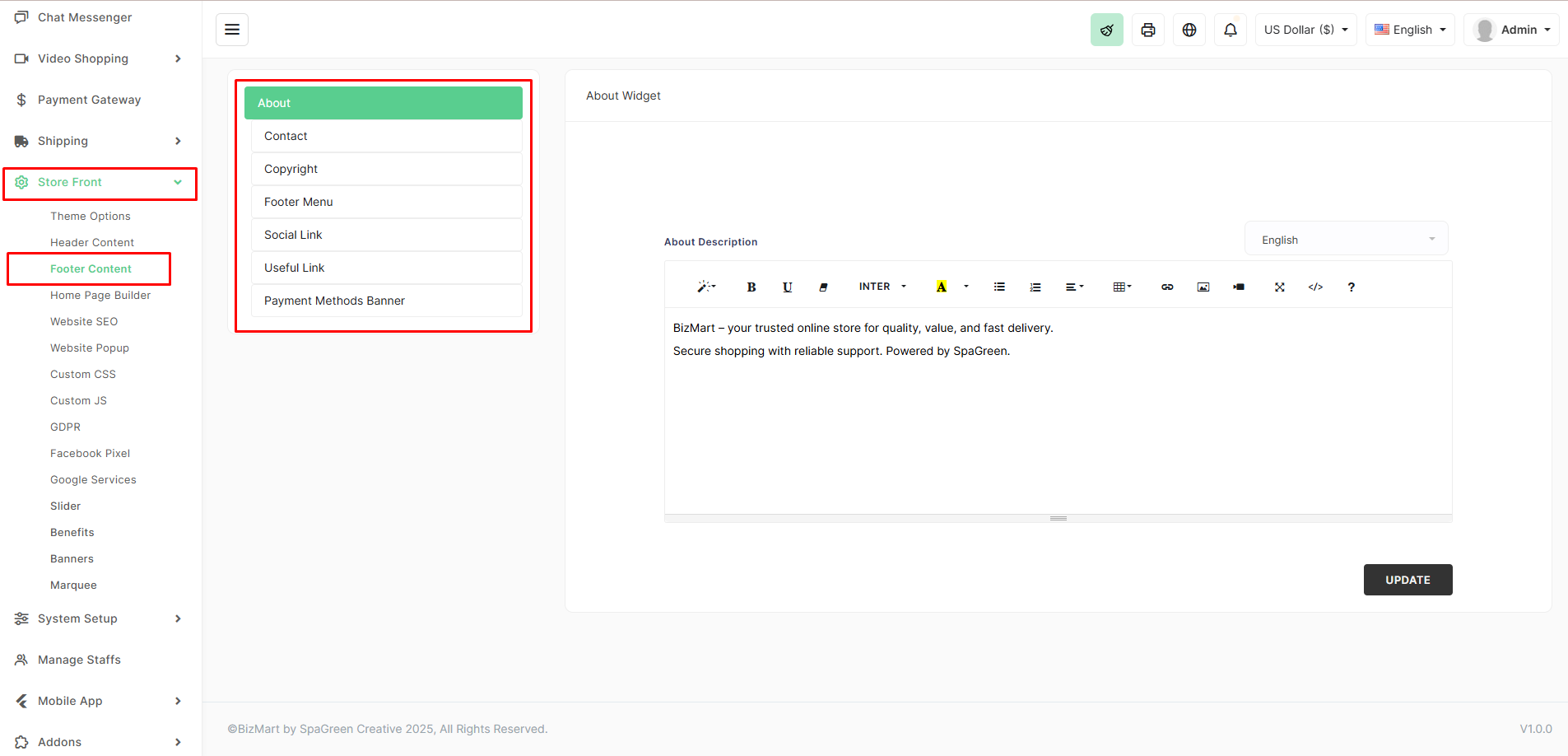
The Footer Content section lets you fully customize the footer area of your BizMart storefront. You can manage the About description, contact details, copyright text, footer menu links, social media icons, useful links, and payment method banners — all without touching code.
Location
Store Front → Footer Content
Available Sections
| Section | Description | Multi-Language Support |
|---|---|---|
| About Widget | Short description about your store (appears in the first footer column) | Yes |
| Contact | Address, phone, email fields (usually displayed in the footer) | Yes |
| Copyright | Copyright text shown at the very bottom (e.g., © 2025 BizMart) | Yes |
| Footer Menu | Links like Privacy Policy, Terms of Service, Refund Policy, etc. | Yes |
| Social Link | Facebook, Instagram, Twitter/X, YouTube, LinkedIn, etc. | No (icons only) |
| Useful Link | Additional custom links (e.g., Blog, Career, FAQ) | Yes |
| Payment Methods Banner | Upload payment icons (Visa, MasterCard, PayPal, bKash, etc.) | No (image-based) |
How to Configure
- Go to Store Front → Footer Content.
- Click on any tab (About, Contact, Copyright, etc.).
- Fill in or edit the content:
- Use the rich text editor for About Description.
- Add or reorder links in Footer Menu and Useful Link.
- Enter social media URLs in Social Link (icons appear automatically).
- Upload payment method logos in Payment Methods Banner.
- Switch language from the dropdown (top-right of the editor) to add translations.
- Click UPDATE to save.
Changes appear instantly on the live storefront.
Pro Tips
- Keep the About Description short (2–4 sentences) for a clean look.
- Use SVG or transparent PNG for payment icons for sharp display.
- Always add Privacy Policy and Terms of Service links — builds customer trust and helps with compliance.
- Translate footer content for each active language to maintain a professional multi-language store.
A well-designed footer improves credibility, navigation, and SEO — make it informative and beautiful!