PDF Font
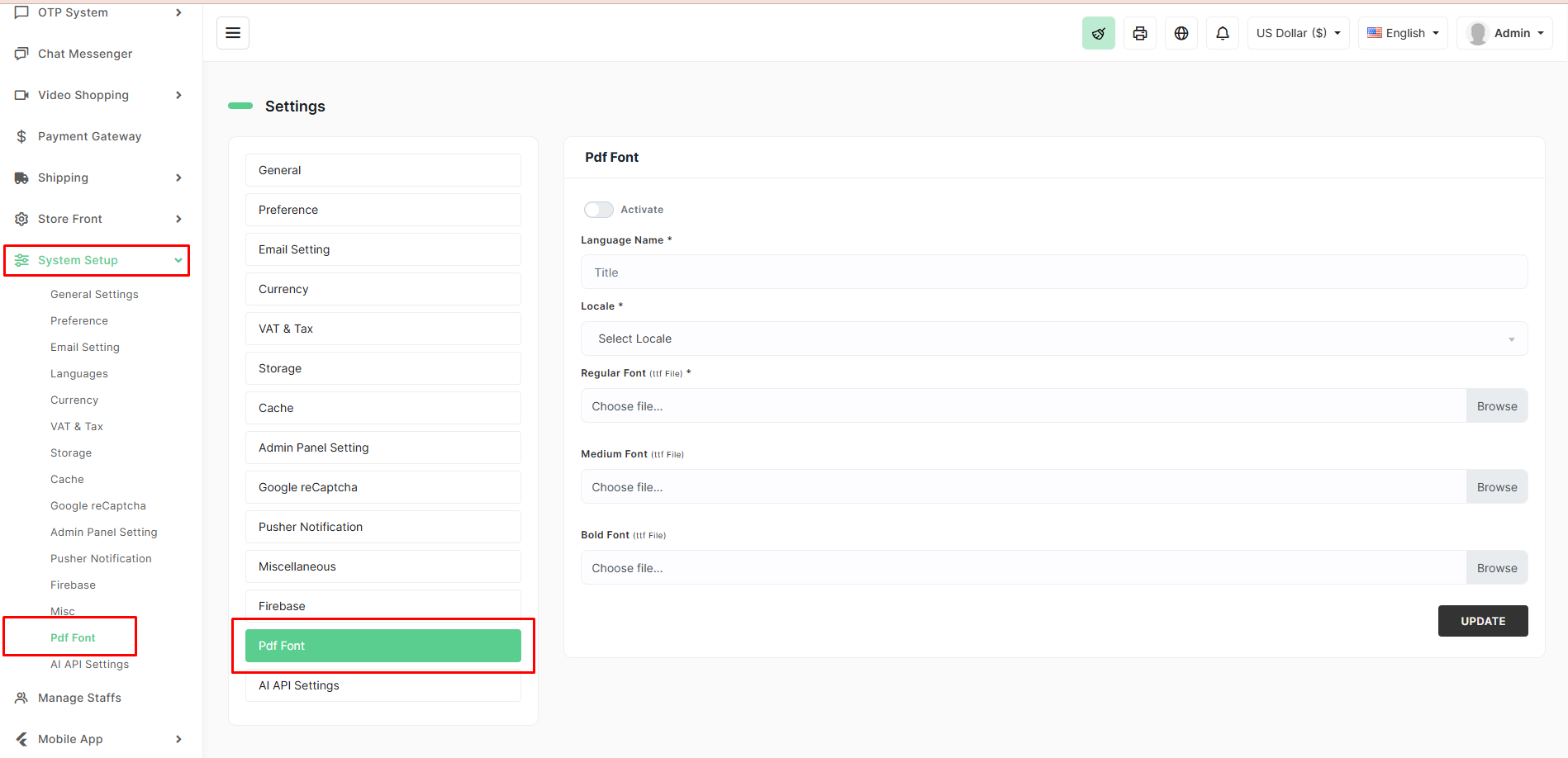
The PDF Font settings allow you to customize the fonts used in all PDF documents generated by BizMart, such as invoices, packing slips, order summaries, and labels. This is especially useful for supporting non-Latin scripts (Arabic, Bangla, Hindi, Chinese, etc.) that require special fonts.
Location
System Setup → PDF Font
Settings
| Field | Description | Required |
|---|---|---|
| Activate | Enable custom PDF fonts (turn off to use default system fonts) | – |
| Language Name | Name of the language/script these fonts are for (e.g., Arabic, Bangla) | Yes |
| Locale | Locale code of the language (e.g., ar, bn, hi, zh) | Yes |
| Regular Font (ttf file) | Upload the regular variant of your custom font (e.g., NotoSansArabic-Regular.ttf) | Yes |
| Medium Font (ttf file) | Optional: Upload medium weight variant (if available) | No |
| Bold Font (ttf file) | Optional: Upload bold variant (if available) | No |
How to Configure
- Go to System Setup → PDF Font.
- Toggle Activate to ON.
- Enter a Language Name (e.g., Arabic, Bengali).
- Select the correct Locale from the dropdown.
- Click Browse and upload:
- At minimum: the Regular Font (.ttf file)
- Optionally: Medium Font and Bold Font for better styling
- Click UPDATE.
Steps to Configure in BizMart
- Navigate to System Setup → Firebase in the admin panel.
- Enable the social login providers you want to offer (Google, Facebook, etc.).
- Paste the corresponding values from your Firebase project into each field.
- Click Save.
After saving, social login buttons will appear on the customer login/registration pages automatically.
Important Notes
- Firebase must be properly configured for Google and Facebook social login to work.
- The Storage Bucket is used when uploading images directly via Firebase (optional but recommended for better performance).
- Keep your Firebase config secure — do not share the API Key publicly.
Tip: Use the same Firebase project across your entire BizMart instance for consistency.
Recommended Fonts (Free & Unicode-Compliant)
| Language/Script | Recommended Font Family | Download Source |
|---|---|---|
| Arabic | Noto Naskh Arabic, Amiri | Google Fonts / Noto Project |
| Bengali | Noto Sans Bengali, Kalpurush | Google Fonts |
| Hindi / Devanagari | Noto Sans Devanagari, Mukta | Google Fonts |
| Chinese (Simplified) | Noto Sans SC | Google Fonts |
| Thai | Noto Sans Thai | Google Fonts |
| Vietnamese | Noto Sans | Google Fonts |
Tips
- Always upload TrueType (.ttf) files.
- File size should be under 2–3 MB each to avoid slow PDF generation.
- If you don’t upload Medium/Bold variants, BizMart will fall back to the Regular font.
- After updating, generate a test invoice to verify correct rendering.
- Only one custom PDF font set can be active at a time.
With proper font configuration, your PDF documents will display customer names, addresses, and product titles perfectly in their native language.