Languages
The Languages section allows you to manage multilingual support for both the admin panel and the storefront in BizMart.
Location
System Setup → Languages
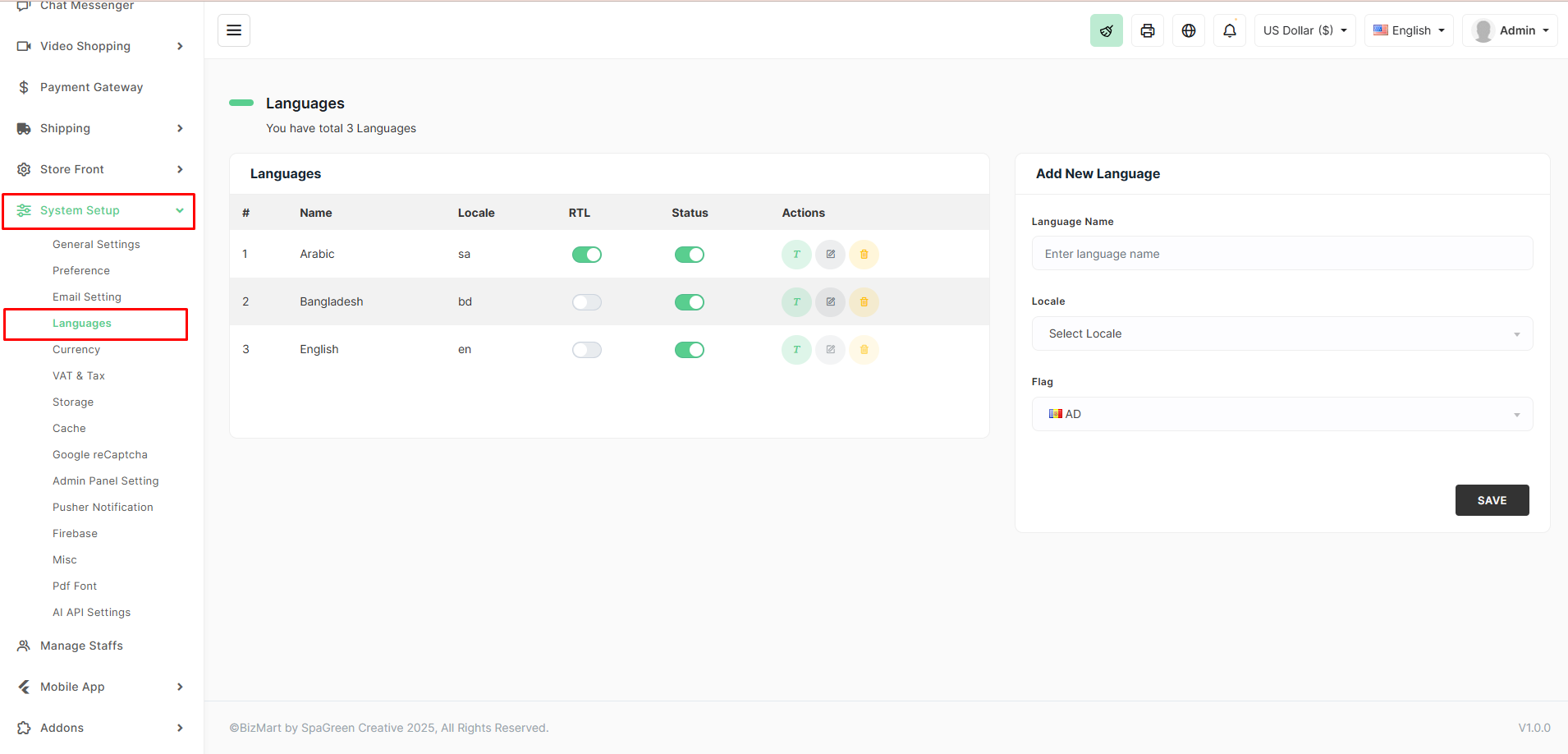
Language List Overview
| Column | Description |
|---|---|
| # | Serial number |
| Name | Display name of the language (e.g., English, Arabic, Bangla) |
| Locale | Language code (e.g., en, ar, bn, sa, bd) |
| RTL | Right-to-Left toggle (enable for Arabic, Persian, Urdu, etc.) |
| Status | Enable/disable the language (only enabled languages appear on frontend) |
| Actions | Translate content, Edit language details, Delete language |
Add a New Language
To add a new language:
- Click Add New Language on the right panel.
- Fill in the following fields:
| Field | Description | Required |
|---|---|---|
| Language Name | Full name of the language (e.g., Spanish, French, German) | Yes |
| Locale | Standard locale code (e.g., es, fr, de, hi, zh) | Yes |
| Flag | Select or upload the country/language flag icon | Yes |
- Click the Save button.
Manage Existing Languages
For each language in the list, you can:
- Enable/Disable the language using the Status toggle
- Enable RTL layout for right-to-left scripts (e.g., Arabic, Hebrew)
- Translate — Opens the translation editor for that language
- Edit — Modify name, locale, or flag
- Delete — Remove the language (cannot delete the default language)
Important Notes
- At least one language must remain active at all times.
- The default language is used when translation is missing in other languages.
- After adding a new language, use the Translate button to add translations for menu items, system texts, categories, products, etc.
- Language switcher will automatically appear on the storefront if more than one language is enabled.
Tip: Use standard locale codes (ISO 639-1) for best compatibility. Example: en for English, ar for Arabic, bn for Bangla, es for Spanish.