Google reCAPTCHA
The Google reCAPTCHA feature protects your store from bots and spam by adding an extra verification step on key forms (login, registration, contact, password reset, etc.).
Location
System Setup → Google reCAPTCHA
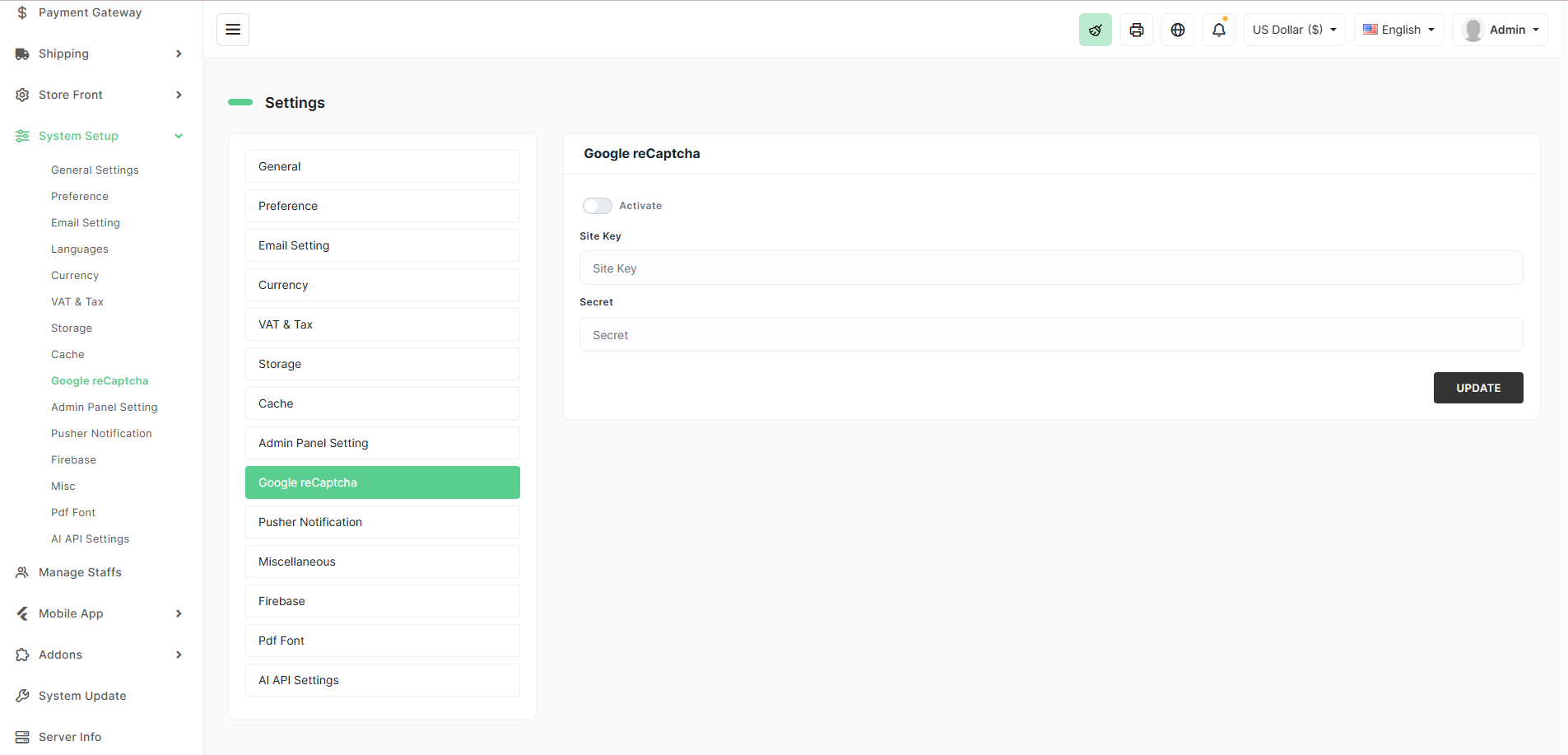
Available Options
| Field | Description | How to Get It |
|---|---|---|
| Activate | Turn reCAPTCHA ON/OFF globally | Toggle ON for live stores |
| Site Key | Public key (visible in browser) | Provided by Google |
| Secret Key | Private key (never shown publicly – used server-side) | Provided by Google – keep this secret! |
How to Set It Up (Step-by-Step)
- Go to the Google reCAPTCHA admin console:
→ https://www.google.com/recaptcha/admin - Click + to register a new site.
- Choose reCAPTCHA v2 → "I'm not a robot" Checkbox.
- Add your domain (e.g.,
yourstore.com,www.yourstore.com,localhostfor testing). - Accept terms and click Submit.
- Copy the Site Key and Secret Key.
- Back in BizMart:
- Go to System Setup → Google reCAPTCHA
- Toggle Activate → ON
- Paste Site Key and Secret Key
- Click UPDATE
Where reCAPTCHA Appears (when activated)
- Customer Login
- Customer Registration
- Forgot Password
- Contact Us form
- Seller Registration
- Refund Request form
- Any custom form using BizMart’s default form handler
Pro Tips
- Always test on localhost/staging first — Google allows
localhostwithout warnings. - Use reCAPTCHA v2 Checkbox (easiest and most user-friendly).
- Never expose the Secret Key publicly.
- Keep reCAPTCHA ON on live sites to prevent spam accounts and brute-force attacks.
- If you see too many false blocks, switch to v2 Invisible or v3 (requires code changes).
Simple, free, and extremely effective — enable it today for a cleaner and safer store!