Firebase Configuration
The Firebase section under System Setup allows you to integrate Google Firebase services with BizMart. This is required for Social Login (Google & Facebook), image storage, and Firebase Cloud Messaging features.
Location System Setup → Firebase
Available Settings
| Field | Description | Required for Social Login |
|---|---|---|
| Toggle to enable Google social login | Yes | |
| Toggle to enable Facebook social login | Yes | |
| Toggle to enable Twitter/X login (optional) | Yes (if used) | |
| API Key | Web API Key from your Firebase project | Yes |
| Auth Domain | Authentication domain (e.g., your-project.firebaseapp.com) | Yes |
| Project Id | Firebase Project ID | Yes |
| Storage Bucket | Cloud Storage bucket (e.g., your-project.appspot.com) | Recommended |
| Messaging Sender Id | Legacy sender ID for FCM (used in older implementations) | Optional |
| App Id | Firebase App ID | Yes |
| Measurement Id | Google Analytics Measurement ID (for Firebase Analytics) | Optional |
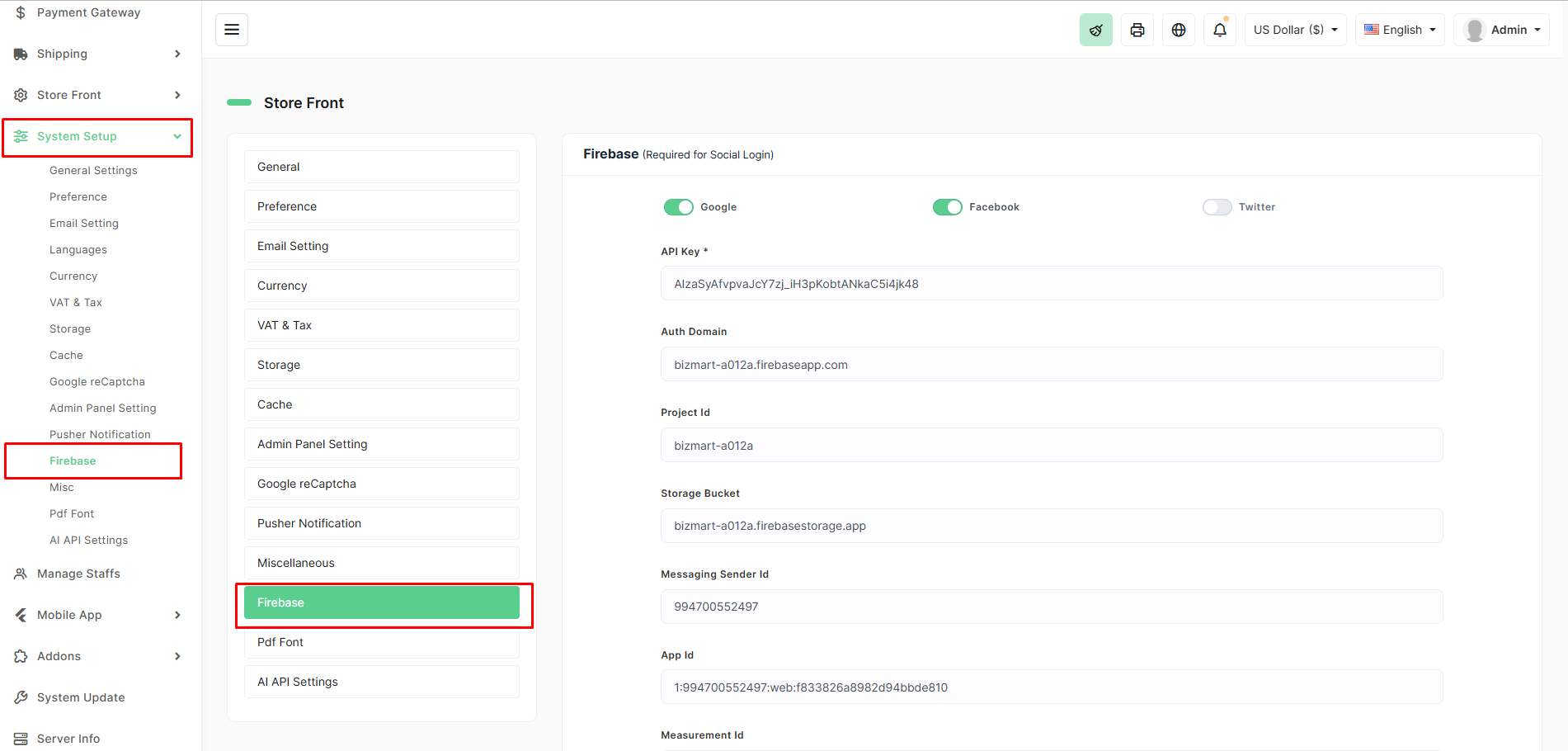
Steps to Configure in BizMart
- Navigate to System Setup → Firebase in the admin panel.
- Enable the social login providers you want to offer (Google, Facebook, etc.).
- Paste the corresponding values from your Firebase project into each field.
- Click Save.
After saving, social login buttons will appear on the customer login/registration pages automatically.
Important Notes
- Firebase must be properly configured for Google and Facebook social login to work.
- The Storage Bucket is used when uploading images directly via Firebase (optional but recommended for better performance).
- Keep your Firebase config secure — do not share the API Key publicly.
Tip: Use the same Firebase project across your entire BizMart instance for consistency.