AI API Settings
The AI API Settings section allows you to integrate third-party AI services (such as ChatGPT, Gemini, Claude, etc.) into BizMart. This powers AI features like product description generation, blog writing, chat assistants, and more.
Location
System Setup → AI API Settings
Available Fields
| Field | Description | Required |
|---|---|---|
| Model Name | The exact model identifier used by the provider (e.g., gpt-4o, gpt-3.5-turbo, gemini-pro, claude-3-opus) | Yes |
| API Key | Your secret API key from the AI provider (keep this secure!) | Yes |
Supported AI Providers & Model Examples
| Provider | Popular Model Names | Notes |
|---|---|---|
| OpenAI | gpt-4o, gpt-4-turbo, gpt-3.5-turbo | Most widely supported |
| Google Gemini | gemini-1.5-pro, gemini-1.5-flash, gemini-pro | Requires Google AI Studio or Vertex AI key |
| Anthropic | claude-3-opus-20240229, claude-3-sonnet, claude-3-haiku | High-quality reasoning |
| Groq | llama3-70b-8192, mixtral-8x7b-32768 | Extremely fast inference |
| Mistral | open-mistral-7b, open-mixtral-8x22b | Open-source friendly |
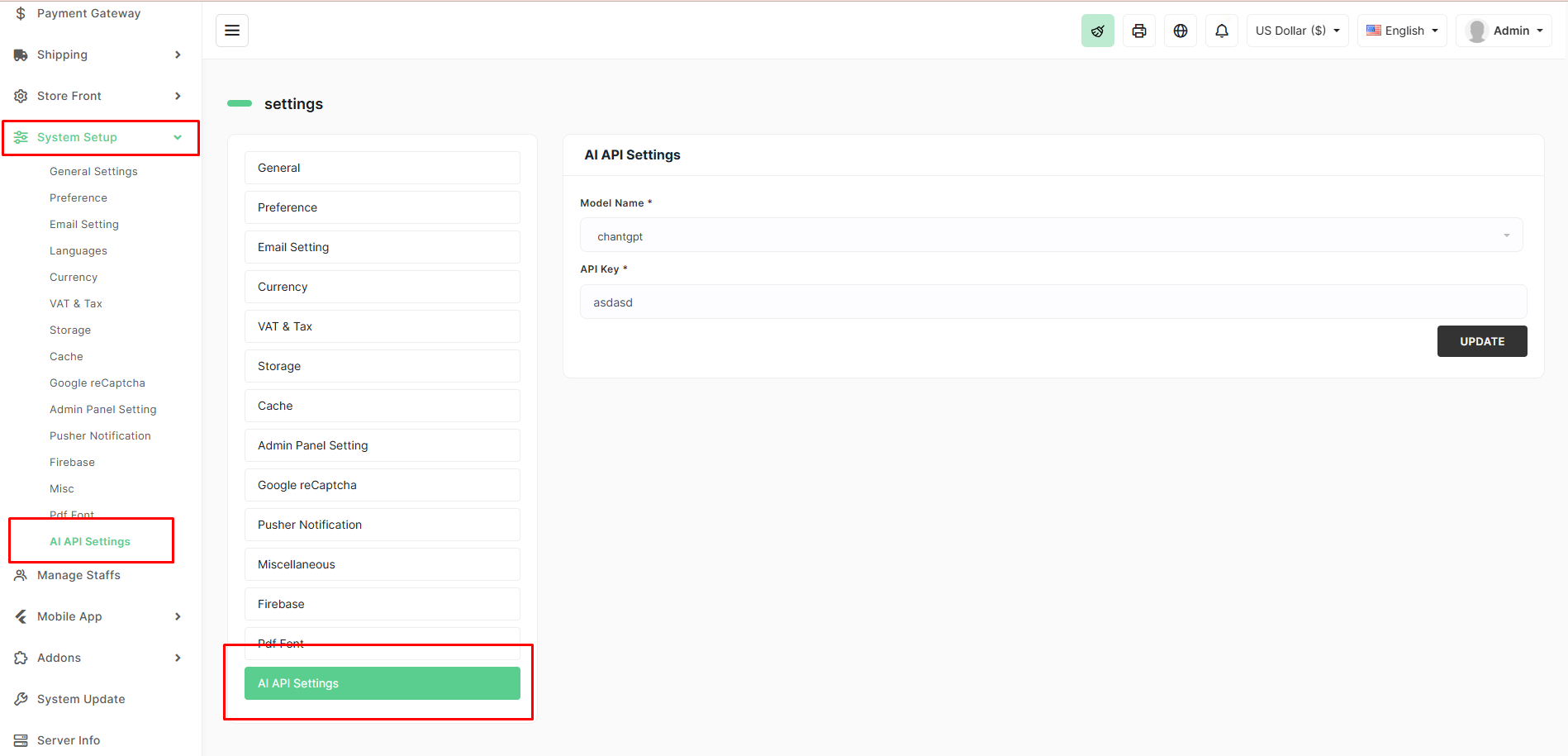
How to Configure
- Sign up or log in to your preferred AI provider and generate an API key.
- Copy the exact model name you wish to use (check the provider’s documentation).
- Navigate to System Setup → AI API Settings in the BizMart admin panel.
- Select or type the Model Name.
- Paste your API Key.
- Click the UPDATE button.
Once saved, all AI-powered features across BizMart (product description generator, blog assistant, etc.) will use this configuration.
Security Tips
- Never expose your API key in frontend code or public repositories.
- Consider setting usage limits/budget alerts in your AI provider dashboard.
- You can rotate or change the key anytime — just update it here and save.
Most users start with gpt-4o or gpt-3.5-turbo from OpenAI for the best balance of speed, cost, and quality.