Admin Panel Setting
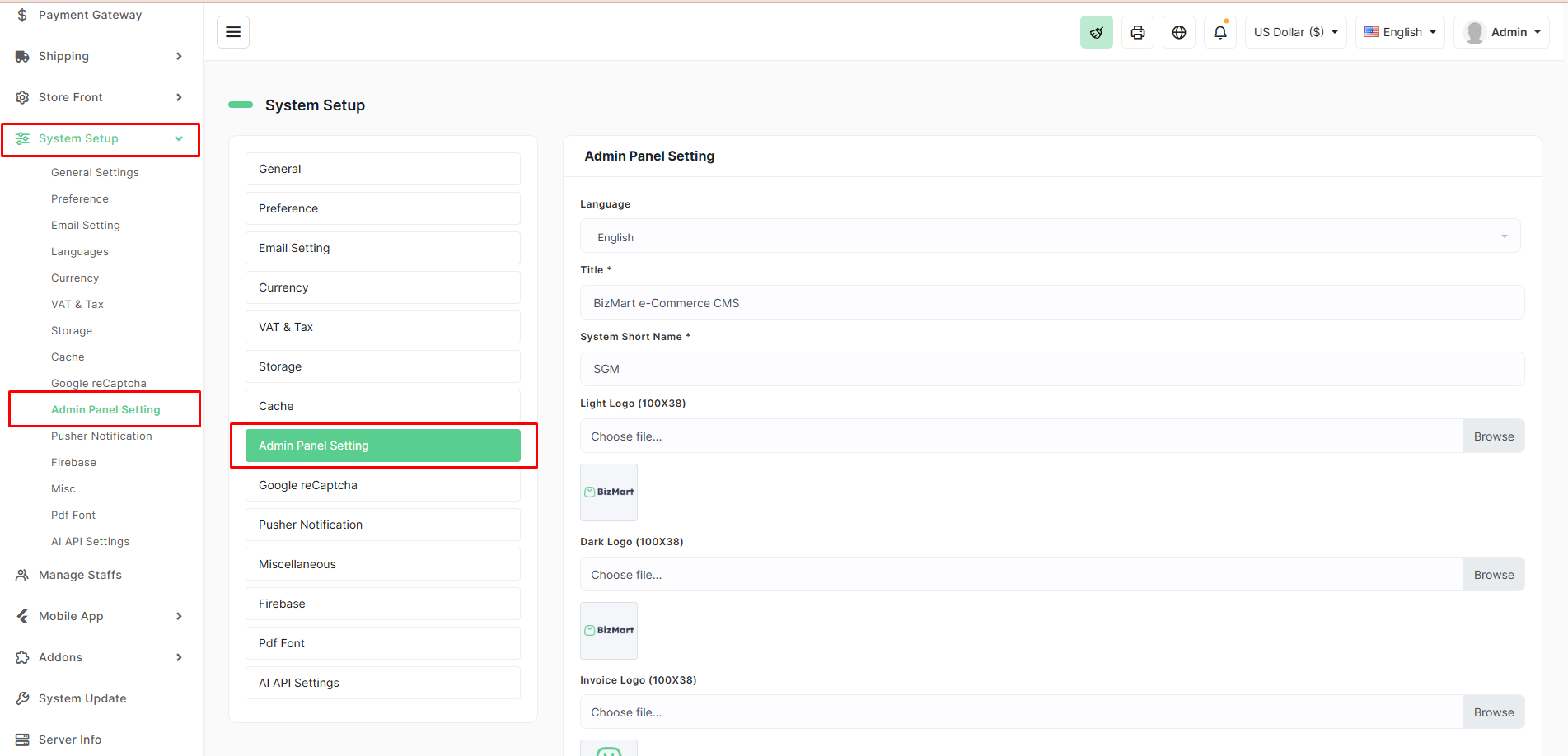
The Admin Panel Setting section allows you to customize the appearance and branding of your BizMart admin dashboard.
Location
System Setup → Admin Panel Setting
Available Options
| Field | Description | Required |
|---|---|---|
| Language | Select the default language for the admin panel | Yes |
| Title | Full name displayed in the browser tab and admin header | Yes |
| System Short Name | Short abbreviation (usually 2–4 letters) shown in the sidebar and favicon | Yes |
| Light Logo | Logo displayed on light backgrounds (recommended size: 100×38 px) | Yes |
| Dark Logo | Logo displayed on dark backgrounds (recommended size: 100×38 px) | Yes |
| Invoice Logo | Logo printed on PDF invoices and other documents (recommended size: 100×38 px) | Yes |
Recommended Logo Specifications
- Format: PNG (with transparent background) or SVG
- Dimensions: 100px width × 38px height (exact ratio keeps the layout clean)
- File size: < 50 KB for fast loading
Steps to Update Admin Panel Branding
- Log in to your BizMart admin panel.
- Navigate to System Setup → Admin Panel Setting from the left sidebar.
- Fill in or update the following fields:
- Choose the desired Language.
- Enter your store’s full Title (e.g., BizMart e-Commerce CMS).
- Enter a short System Short Name (e.g., SGM, BM, etc.).
- Upload the Light Logo, Dark Logo, and Invoice Logo by clicking Browse or dragging the files into the respective areas.
- Click the Save button at the bottom of the page.
Your changes will be applied immediately across the entire admin panel.
Tip: Keep both light and dark logos ready with the same dimensions and text/content for a consistent look when the admin switches between light and dark modes.